Category Archives: Computer

MAME Arcade Cabinet

Well, my vision of about five years ago has made it to a working machine. A MAME (Multi Arcade Machine Emulator) machine is one that will play all the classic arcade games as long as you have the ROM files.  (You can click on the pics below for larger size ones.)

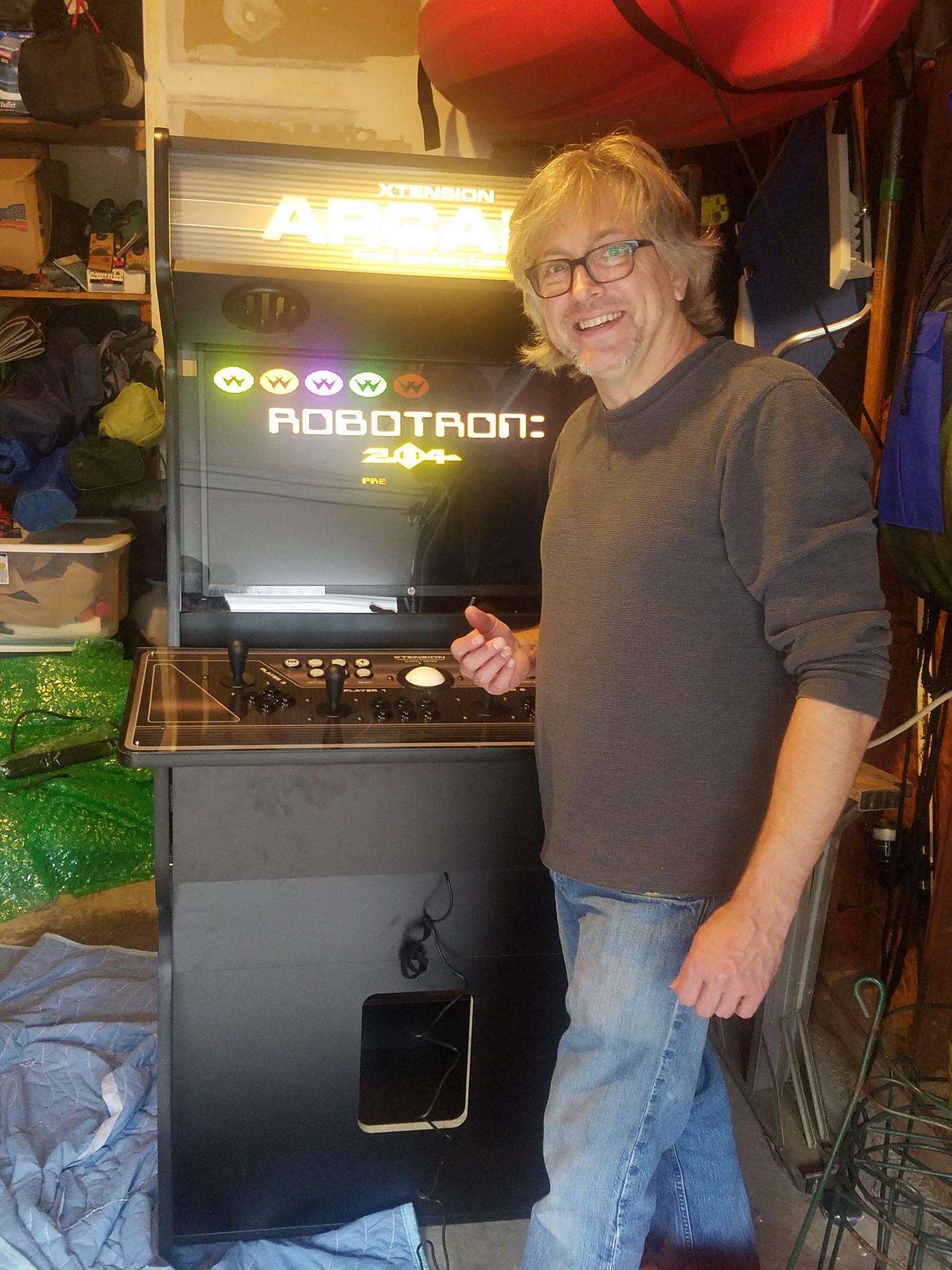
Here, you see my friend just after  we powered it up for the first time, after mounting the monitor to the top half of the cabinet and installing it on the bottom half.  Then, the computer got installed, and for this first test, we didn’t even have the controller screwed down.  Here, we have just gone into the Robotron 2084 game for a first run.  At this point, we still had to map the controllers for a true experience.  This includes the trackball for games like Missile Command, Arkanoid, Centiped, etc. My friend opted to not install a coin door in the hole in the front, but insted decided on a blank panel….  This Arcade cabinet has all the roms that you might encounter in a true video arcade: Space Invaders, Mario Brothers, Asteroids, and the list goes on and on.  Here, you can see his girlfriend taking Ms Pac Man out for a spin.  This arcade cabinet seems to be a big hit.  I put together an Elite 8200 USDT computer with Windows 10 Pro on it, along with Maximus Arcade front end for MAME.  The computer boots directly into the front end, and you only need to select the game you want to play.  My friend picked up the cabinet and tankstick controller from recroommasters.  You can just google it.  He also had to pick up a 32″ vesa mount display.  (I recommended a VGA input, but he could have used the native DP++, Display Port, or adapt that to HDMI, but a VGA input is easiest.)  There was a bit of initial angst, and my friend noticed the display would occasionally flip upside down, so I just had to disable the intel video driver’s hot keys, as the tankstick emulates keyboard buttons, etc, and was causing this.  Turning the hot keys off fixed that.  Another bit of startup tweaking was the trackball wasn’t being picked up, so I had to go into the mame.ini file and set MOUSE and MULTIPLEMOUSE from 0 to 1.  If you don’t want to go thru the time and expense (not cheap) of setting a cabinet like this up, for the price of a computer, ram and hard drive, you could actually connect to your wide screen TV set, and play the classic arcade games right from your couch.  🙂
 

Installing MATE

The following is courtesy of:  Sylvia Sanchez:

Like KDE, MATE has its own spin.  But if you want to install it along your current desktop, you can do it following these instructions.

First, update your system using your graphical tool, or use this command:

sudo dnf update

To install everything needed, use this command:

sudo dnf groupinstall mate-desktop

You may want to install Mate related tools as well. You can do that with this command: (recommended)

sudo groupinstall mate-applications

The system will show you the amount to download and the final size once installed.  If you’re okay, type y (or the equivalent for “yes” in your language).  The installation itself is automatic, so you can do other things while packages install if it takes a while. If you use Terminal in a standard Fedora Workstation install, a notification sounds once the command is done.  If you’re using Konsole or other tool, you may want to keep an eye on the process to know when it’s finished.

After installing your new desktop, of course you’ll want to try it. For best results, shut down your system and turn it on again. At the login screen, once you select or provide your user name, the password screen appears. There is a small gear icon which shows you options for desktop environments. Select MATE and then provide your password as usual.

Once you log in, you will find something like this:

Bare Mate Desktop

You can play with the settings to change the appearance as you want.  Anything you want to change is under the System menu which contains three separate items: Preferences, Administration, and Control Center.  If you find this familiar, it isn’t a coincidence. MATE looks exactly the same as Gnome 2, from it was originally forked, and it resembles the Apple OS X style.

Under Preferences you can change GTK colors, styles, desktop themes, and icons.  If you choose Control Center, you’ll launch the main program to tweak MATE. From here you can change everything about its look and feel, but you can also perform administrative tasks like configuring hardware or setting passwords.

Settings Menu and Folders

You can find more info about MATE here at their official website. You can also visit the official Fedora MATE spin website to get an installable MATE image put together by MATE fans and contributors in Fedora.

System Information

A lot has happened since the end of the year, so let me try to catch everybody up to date….

Around Nov 2019, the Fedora Linux server sustained a system hard drive crash.  No big deal, right?  This is why I have spare hardware and backup sets and drive images.  To prevent, or minimalize the loss of data.  So, I couldn’t find any spare 250GB drives, so, I installed a 320GB drive as the boot device and restored the image.  The current Fedora OS at the time was F31, so, I figured that I would upgrade the server to current while I was at it.  The upgrade from F28 to F30 went fine, but that’s as far as it would go.  Awhile back, Fedora stopped supplying live 32 bit images, but would upgrade an existing 32 bit image.  That ended with F31.  The server was a HP D530 @2.8GHz, with 4GB of ram, and was 32 bit only, so I ordered a couple new servers.  I’m not really upset over that, as the existing D530 has been running 24/7 since September 2010.  Not a bad run for a server: 9 years.

I picked up a pair of HP Elite 8300 Convertible Mini Tower computers at a great price, both came with 8GB Ram (Expandable to 32GB).  The CPU is a quad core i5-3470 running at 3.2GHz (32/64 bit).  It has been running since Jan 2020 and rarely runs at less than 98.5% idle, with a load usually of 0.1. The four cores of the CPU usually hang out at about 80 degress Fahrenheit, and trying to push the CPU doesn’t get the temperature to move at all… The server usually never even touches the swap, instead staying within the 8GB of memory, so putting another 8GB into it isn’t really a priority.  I performed a fresh F31 install, and restored the KRAB server, and many more items.  I also had suspended auto backups for a few months, but the auto backup rotation is now up and running and the full backups run much faster now that the system is 64 bit with more memory.

On a side note, my friend, Duck Landes and I worked on, and got set up a KRAB radio relay.  He also expanded his existing four channels and added a couple more besides the relay.  The URL for the server is: quackhouseradio.net.  There, you will find the following channels:

QH1: Bootleg Rock and Blues, Duck’s Live Broadcasts
QH2: Bootleg Blues and Old Time Radio
QH3: History
QH4: Bootleg Concerts and KRAB Live Broadcasts
QH5: Horror
QH6: Old Time Radio
KRAB: KRAB Radio Relay

The streams are as easy as going to the correct channel, and just clicking on the winamp or media player icons.  (In the case of KRAB, you can either do that, or click one of the two listen buttons in KRAB’s left frame.) If you chose that method, it should ‘fall back’ to KRAB server, if  QHR server becomes unavailable.  The KRAB server URL is krabradio.net, fyi.

So, this all has kept me fairly busy since the coronavirus pandemic started, but keep your eyes open for an upcoming 10GB music upload that I am working on….

Comodo Antivirus for Linux Issue (and fix)

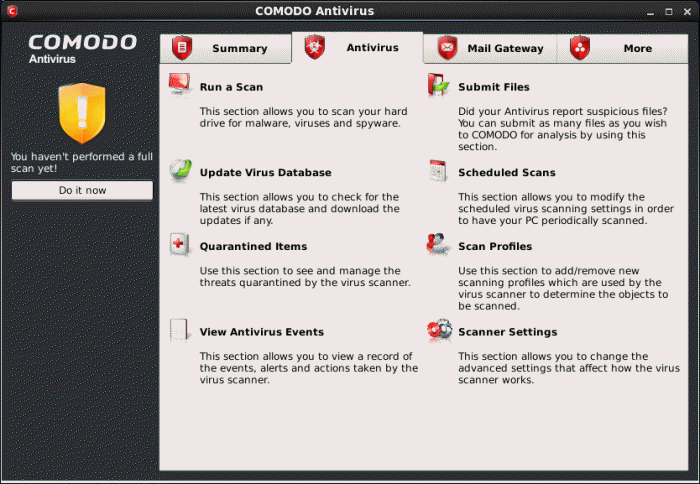
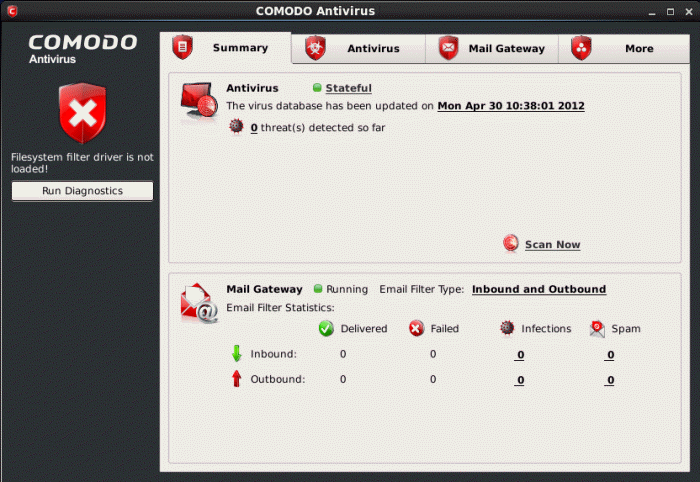
In my last post, I talked about a bitcoin miner and Comodo Antivirus.  Well, you may not realize this, but Comodo AV is available for most of the main Linux distributions, in their native packages.  You just have to select your distribution and whether it’s 32 or 64 bit, and download it…. You will see from the image at the right, that it bears a striking resemblance to its windows cousin.  In my case, since I use Fedora, I received an .rpm file (stands for redhat package management).  Installation was a snap using the terminal shell, and after a reboot, it showed up in the menu of my Mate desktop manager. 😉  However, there was a fly in the ointment.  After the RPM installed successfully, I was told to run /opt/COMODO/post_setup.sh as root (or sudo).  However, it failed building the filesystem filter driver, as seen on the left.  Without that, there will be no ‘real time’ virus protection, which kind of is the whole reason for running an antivirus package in the first place, doesn’t it?  Well, I have the solution for y’all right here.  All you need to do is to download this replacement file:   cav_kernel4.1_driver  and replace the defective driver.tar file in /opt/COMODO/ (or where ever your distribution puts the main directory).  This replacement is for kernel 4.1 or less…. Then, you can rerun the post_setup.sh and it should build the filesystem filter driver properly.  😉

Hope that I managed to help anybody that’s having issues with CAVL.