Category Archives: Tech Tips

Put an end to your ISP tracking your habits

Are you concerned about your digital footprint? Does it bother you that anyone listening can observe which websites you visit? Most people don’t know what DNS is or how much information it leaks. I’ll share with you what the problem is and how to fortify yourself against snoopers.

DNS (Domain Name System) is the backbone of the internet. Without it, browser requests would not resolve a domain name (e.g., crabradio.net) to an IP address. That’s essential, because the fundamental principles of routing traffic depend upon numbers (IP addresses). However, the designers of DNS did not consider privacy (or security). Consequently, it leaks every website you visit, which mail servers you use, and sometimes a lot more. A snooper can build substantial profiles on all of us, and they do. There is one saving grace, and there’s slow-moving progress in the right direction. Today, I have a solution that’s different from the rest.

This video does an excellent job of explaining how DNS works:  DNS video but, if you already have a decent understanding of Domain Name System, you may wish to skip watching it.

You can see queries do not stop at your DNS server (aka recursive resolver). Further requests occur upstream, incrementally resolving them until they reach the “authoritative nameserver,” which handles domains it controls (called a DNS zone). We will cover the last mile today, the part between your OS (aka stub resolver) and the recursive resolver.

The “last mile” is a term used in telecommunication (from the service provider’s perspective) to describe the last leg between the system and the end-user. Conversely, the (unofficial) term “upstream” refers to all the other links (between the resolver and the nameservers). These words sound awkward together, so they’re worth an explanation.

The biggest problem with DNS is that the request between the stub resolver (in your OS) and the recursive resolver is unencrypted. These packets contain information about where you shop, where you bank, what times you’re awake, and what you like, watch, and think, and when you do it. Your traffic pattern is so unique that it can fingerprint and track you across networks. So, if you use a VPN, your DNS requests act as a shining beacon, uniquely identifying you. This can occur even with encrypted queries.


Typical DNS requests also take place over connectionless UDP, which does not ensure packet stream integrity. Couple that with a lack of encryption, and they’re alarmingly easy to intercept and manipulate. In fact, it’s common practice for your ISP to do so, forwarding them to their own resolvers or modifying the response. So, if you think you’re using Cloudflare’s DNS, think again. Mass censorship systems also use such tactics: The Great Firewall of China uses deep packet inspection and DNS injection to reroute queries.

It’s important to realize that your DNS requests may traverse many jurisdictions, and often countries and organizations don’t share the same values as you. While some may have ideological differences, others have commercial intent. That’s not limited to foreign countries either. It’s well known that Comcast once redirected its customers to ad-laden web pages upon nonexistent domain (NXDOMAIN) errors.

While you may have nothing to hide, your DNS requests are being intercepted and redirected, which makes you vulnerable to social manipulation and commercial profiling. I don’t know about you, but the unregulated interception of my packets is deeply unsettling.

We’ve established that unencrypted DNS queries leave them open to interpretation and manipulation, and the strongest solution is always encryption. There are a couple of solutions to do this, with DNS-over-TLS (DoT) and DNS-over-HTTPS (DoH) being two. While good and often recommended, they don’t offer the additional features that DNSCrypt does. The DNSCrypt client site is HERE.

DNSCrypt is my go-to choice because it encrypts and pads your queries. Padding is crucial because upstream packets get decrypted, and a snooper with significant resources (such as an ISP) can correlate the encrypted and unencrypted packets by size and timing, making encryption meaningless. Both DoT and DoH have sparse support for it, so it’s often unused. DNSCrypt makes this feature mandatory, so all your packets are resilient against traffic analysis and correlation.

However, it’s the additional relay feature that seals the deal for me. When requested, DNSCrypt will send your encrypted requests through an intermediary (the relay). It can’t read the data, but it knows who made the request. When it forwards the packets, upstream only sees the relay making the request and the request data—which means they know nothing about you.

So DNSCrypt encrypts, pads, and routes your queries through a relay. All three make DNSCrypt the best choice for protecting your privacy.

Awhile back, I made a post that showed you how to configure a linksys 1900acs router with NordVPN on it.  The post is HERE, if you wish to review it.

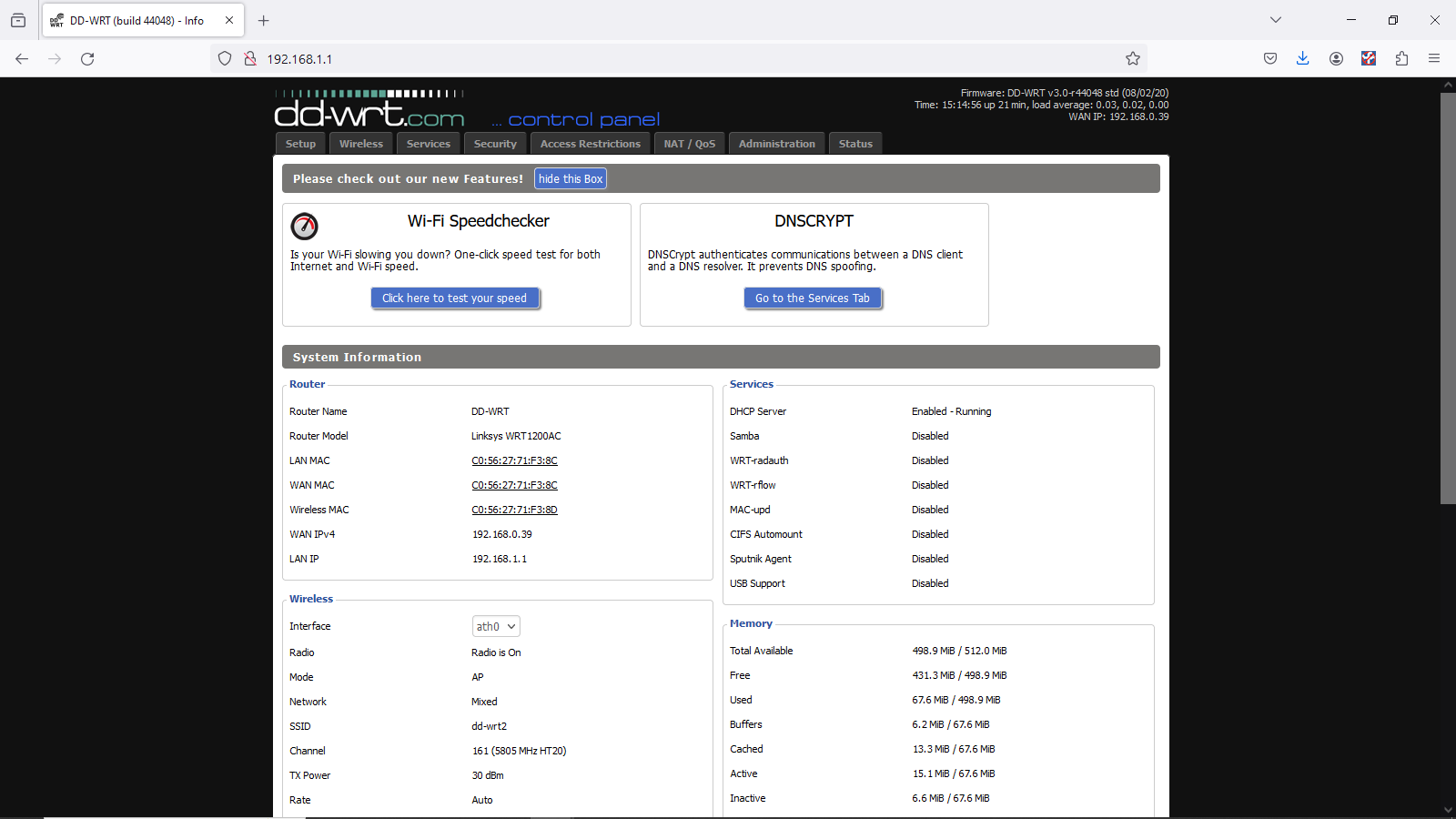
If you are using dd-wrt firmware, it’s easy to enable DNSCrypt. Just go to Services>Services and set DNSMasq and DNSCrypt to ON. Ensure that “Use DNSMasq for DHCP” and “Use DNSMasq for DNS” are checked in your DD-WRT settings to prevent DNS leaks.

I mentioned earlier that even using a VPN that your DNS requests are like a shining beacon…. This is not entirely true, if you are using NordVPN as I do. When NordVPN is active via OpenVPN, it typically routes all DNS traffic through its own encrypted tunnels as long as you set it up that way to not use the ISP DNS Servers  (NordVPN’s DNS servers: 103.86.96.100 and 103.86.99.100). Running DNSCrypt simultaneously means you are encrypting queries that are already being encrypted by the VPN, which is redundant.

So, the moral of the story is that if you aren’t using a VPN with it’s own secure DNS Servers, you should probably set up DNSCrypt to insure your privacy, at a minimum, but, running both would gain you nothing except injecting more latency.  And, if you have a choice, NordVPN would be the better choice, as not only is the DNS traffic encrypted, but so is all of your traffic, because it is all contained in the encrypted tunnel, thereby shielding not only your browsing habits from your ISP and snoopers, but all of your data as well.

Hope that this was all understandable, and sorry for the length, but it’s a very large topic. And, if anyone has any questions y’all know how to reach me.  😉


How to install VPN on a router

I was talking with a former colleague of mine a week or so ago that I worked with for 21 years. Since we are both Engineers, many times, our discussions contain tech ramblings of one sort or another.  This time, we chatted a little bit about routers and putting a VPN on them to protect multiple devices at a time.

The VPN currently in the #1 spot, is NordVPN. (For many reasons, including a no logs policy.) I also remembered that a few of my friends actually had to get Nord’s assistance to get it all set up on their router.  Usually, that ability resides with the more expensive routers, and usually not allowed on things like the Arris routers that you get from your cable or fiber ISP.

But, there is another, cheaper alternative, as long as you have a supported router.  This is one reason that I’m fairly partial to Linksys (Cisco) routers, ever since my first 4 port wired router, and my first 4 port wiress router. I have WRT54G, WRT54GL, WRT1200ac, and WRT1900ac routers.  I flash them with the DD-WRT firmware. DD-WRT unlocks a lot of features, making a somewhat cheap router perform like one that is much more expensive.  (Sometimes $500 – $600 or more.) I think at one time, I was buying WRT54GL routers new on amazon for 50 bucks.  But the 1200 and 1900 routers were selling for $200 and $300 respectively.  Good news is that you can find them each on ebay for around 40 bucks now. 😉 (BTW: you can click a couple times on the supplied graphics to help you see better.)

This post won’t go over flashing (maybe later) your router, as you can get help on that from dd-wrt, or youtube. Once you have flashed your router, the interface is fairly similar, no matter which router you have.

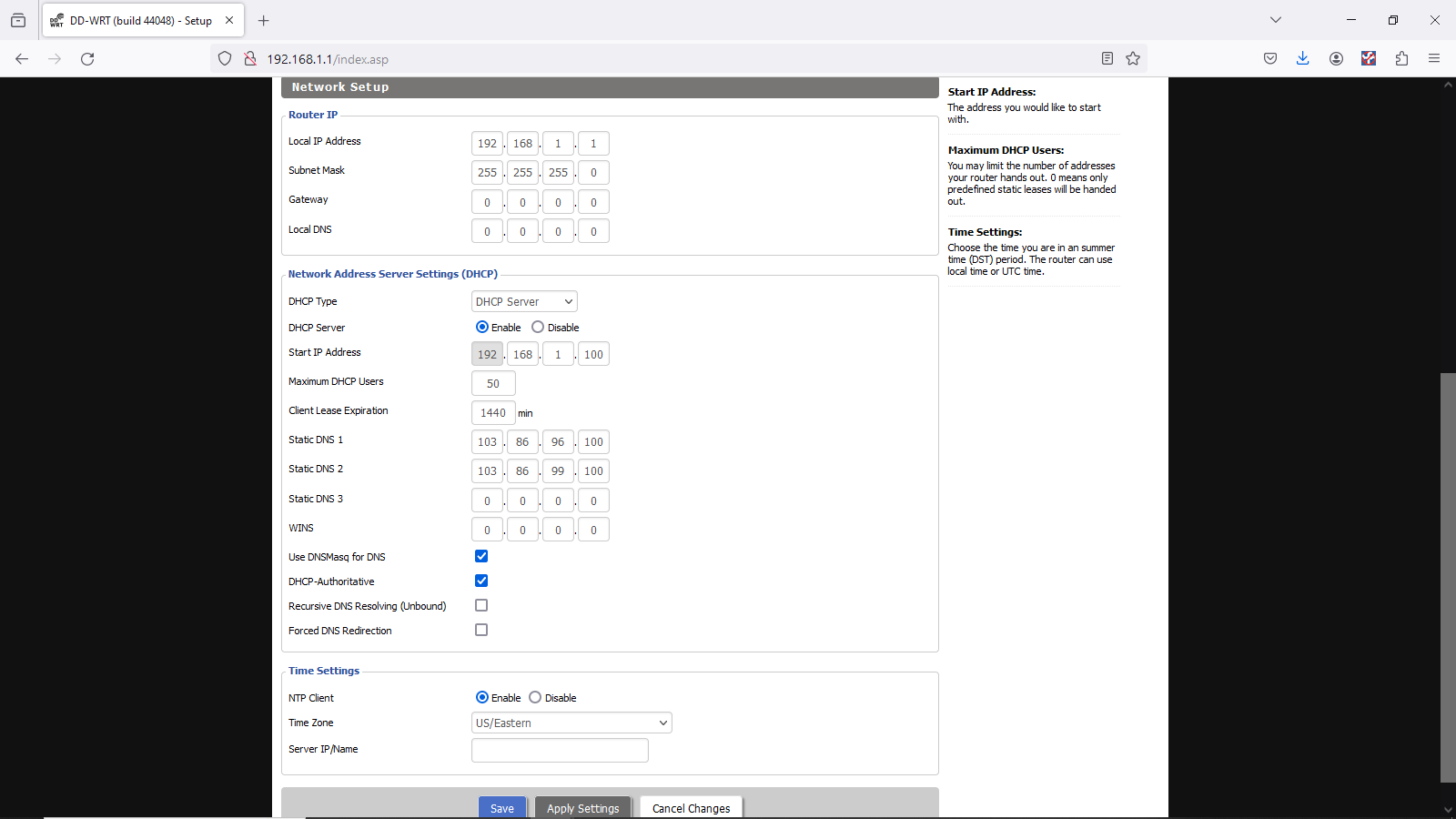
In order to get  NordVPN on dd-wrt, the first thing to do is to go to Setup>Basic Setup in the interface. Under Network Address Server Settings (DHCP), set the following:

Static DNS 1: 103.86.96.100
Static DNS 2: 103.86.99.100
Static DNS 3: 0.0.0.0 (default)
Use DNSMasq for DHCP: Checked     (If you have this)
Use DNSMasq for DNS: Checked
DHCP-Authoritative: Checked     Then, Save and Apply

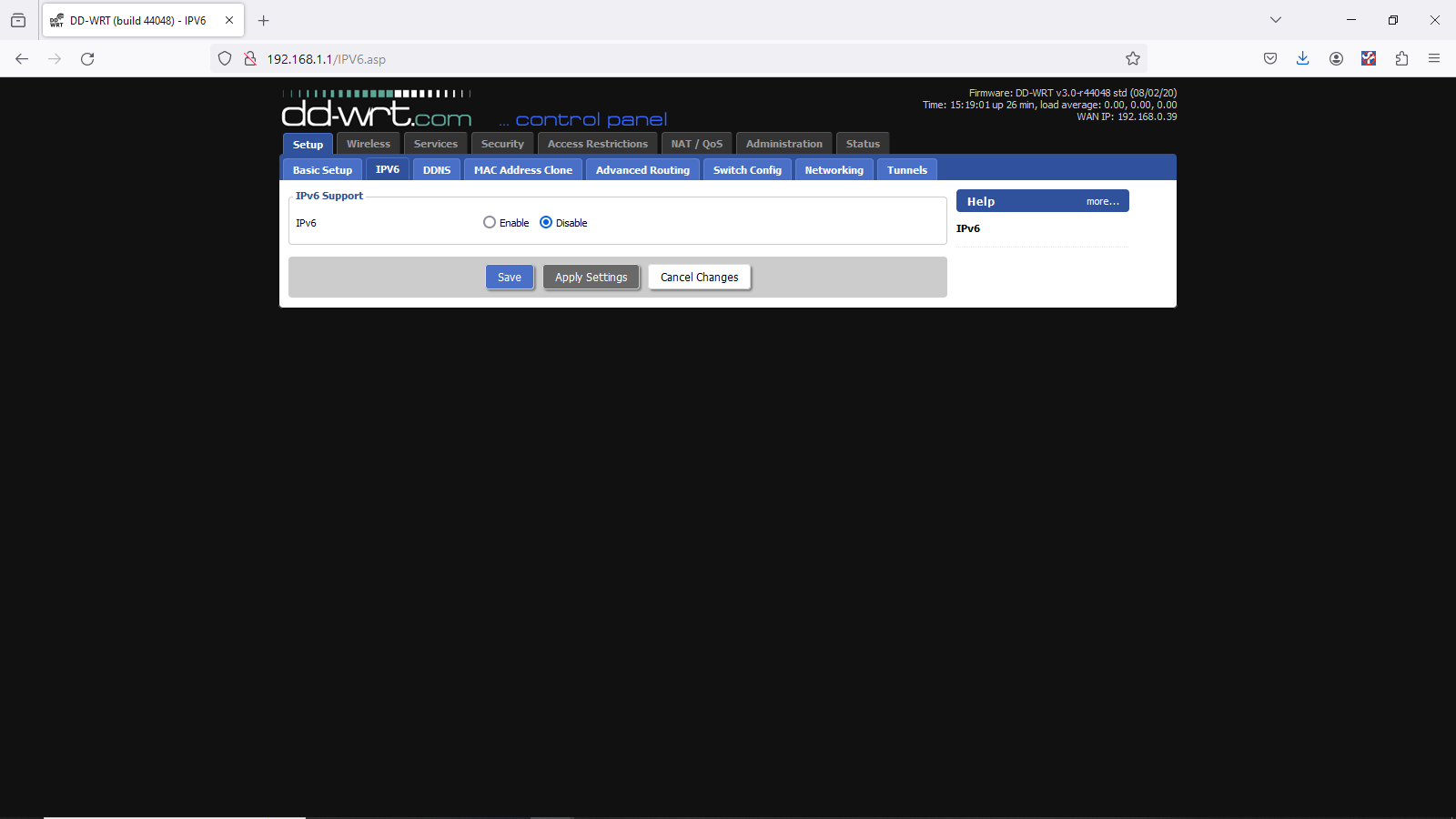
Next, head over to Setup>IPV6 and make sure it’s disabled.  If you have this enabled, your actual IP address can potentially leak out and defeat the advantage of using a VPN.

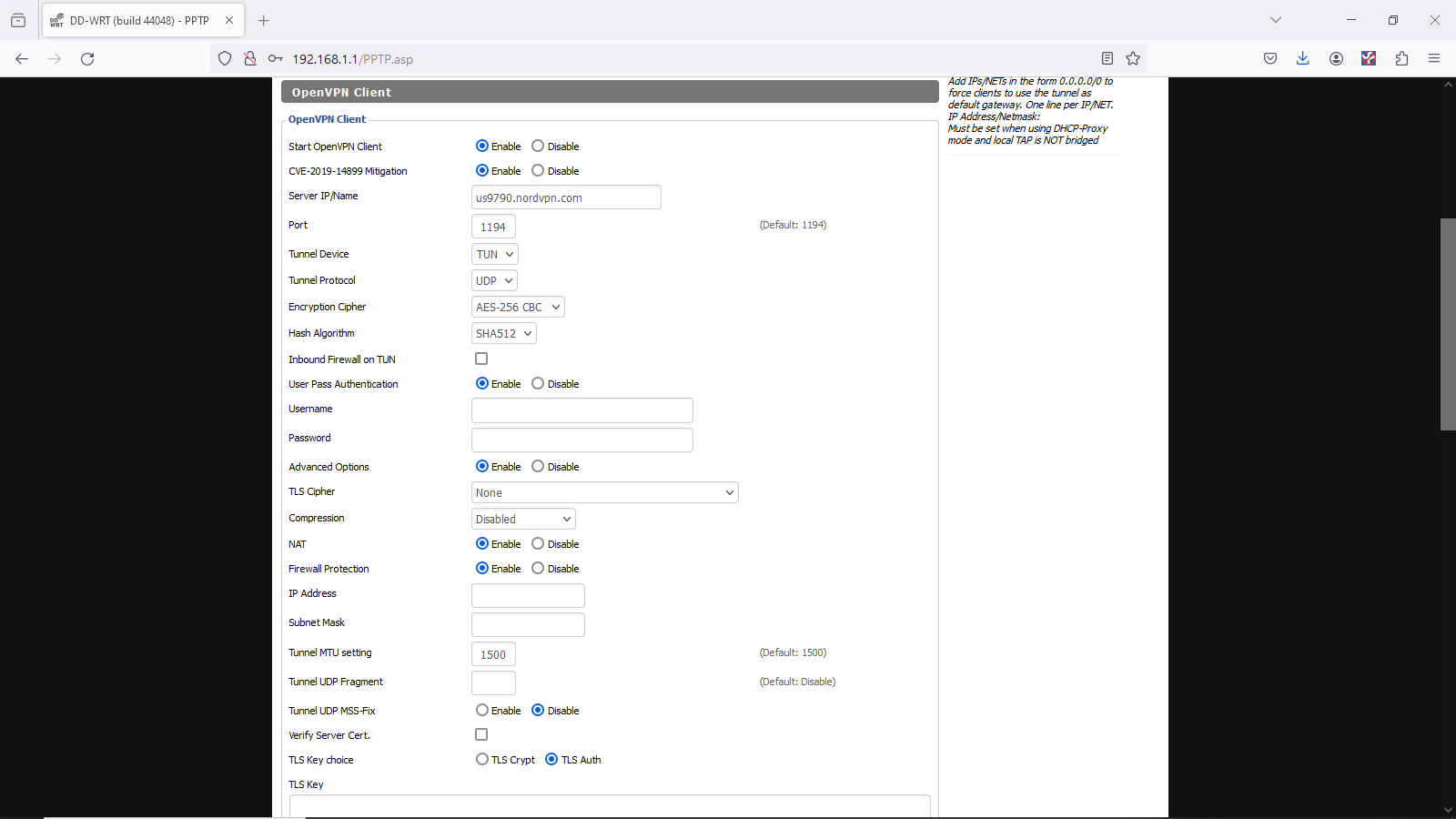
Next, you’ll want to go to Services>VPN.  Under OpenVPN Client, set Start OpenVPN Client to Enable, and you will then see the configuration options.  You will need to set the Server IP/Name.  If  using Nord, you can go to https://nordvpn.com/servers/tools/  to get a suggestion as to the best server. Then, click on show available protocols, and download the UDP or TCP config file.  (I use the UDP on my routers.) You will need this file in a little bit. You will want to also set the following values:

Port: 1194 (or 443 for the TCP protocol)
Tunnel Device: TUN
Tunnel Protocol: UDP (or TCP)
Encryption Cipher: AES-256-CBC
Hash Algorithm: SHA-512
User Pass Authentication: Enable
Username, Password: Your NordVPN service credentials
(The encrypted versions) You get these from logging into Nord, then going to: https://my.nordaccount.com/dashboard/nordvpn/  Then, go to the bottom and click on Set up NordVPN Manually. It is there that you will find the encrypted user name and password. You will want to copy/paste them into the appropriate blocks on DD-WRT. Set Advanced Options to Enable to allow you to set the following:

TLS Cipher: None
LZO Compression: Disable
NAT: Enable

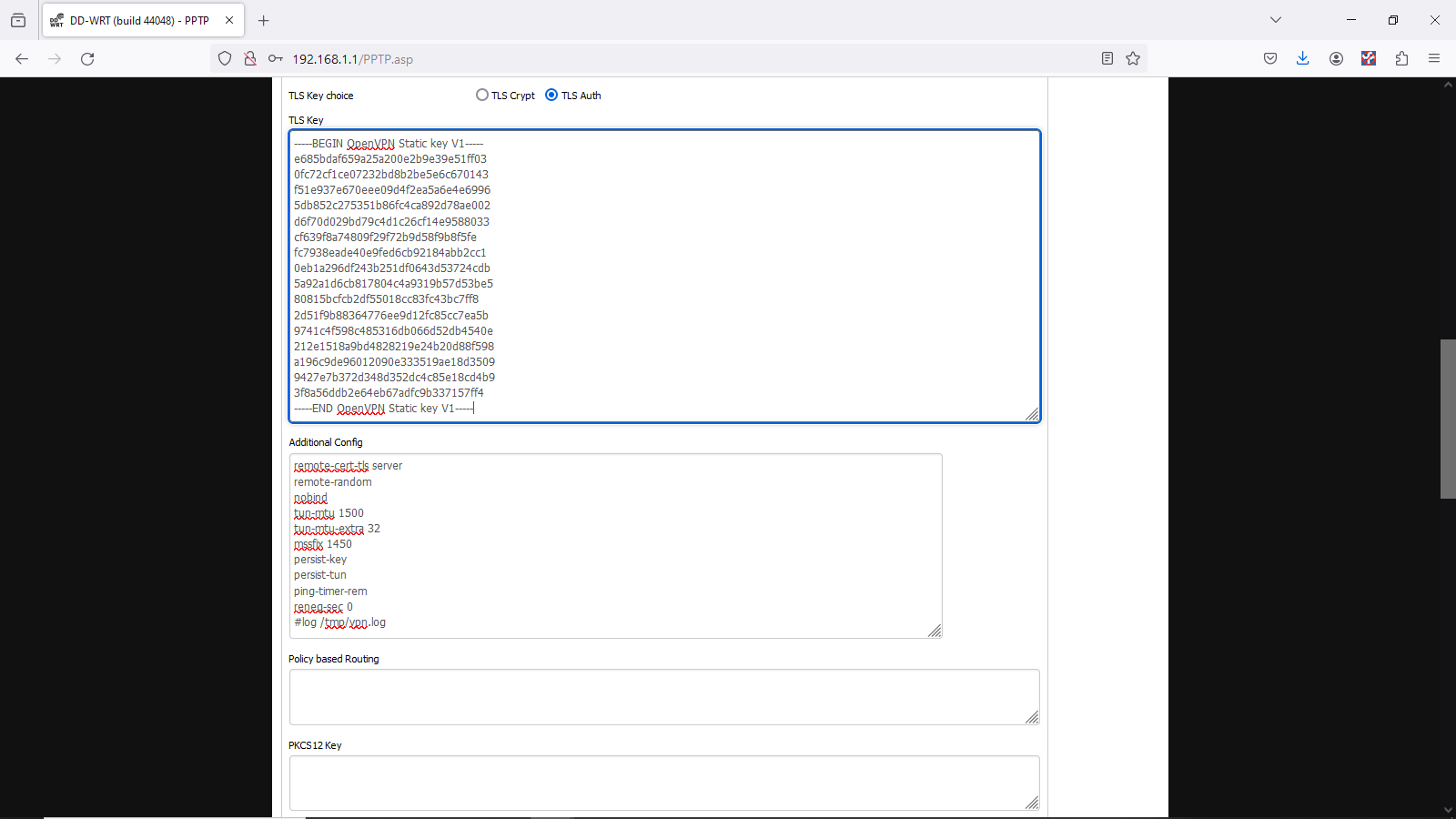
In the Additional Config box, put these commands:

remote-cert-tls server
remote-random
nobind
tun-mtu 1500
tun-mtu-extra 32
mssfix 1450
persist-key
persist-tun
ping-timer-rem
reneg-sec 0
#log /tmp/vpn.log

Then, open the UDP (or TCP) config file that you downloaded into a text editor. Look for the section that has these two lines:

—– Begin OpenVPN Static Key V1—–

—–End OpenVPN Static Key V1—–

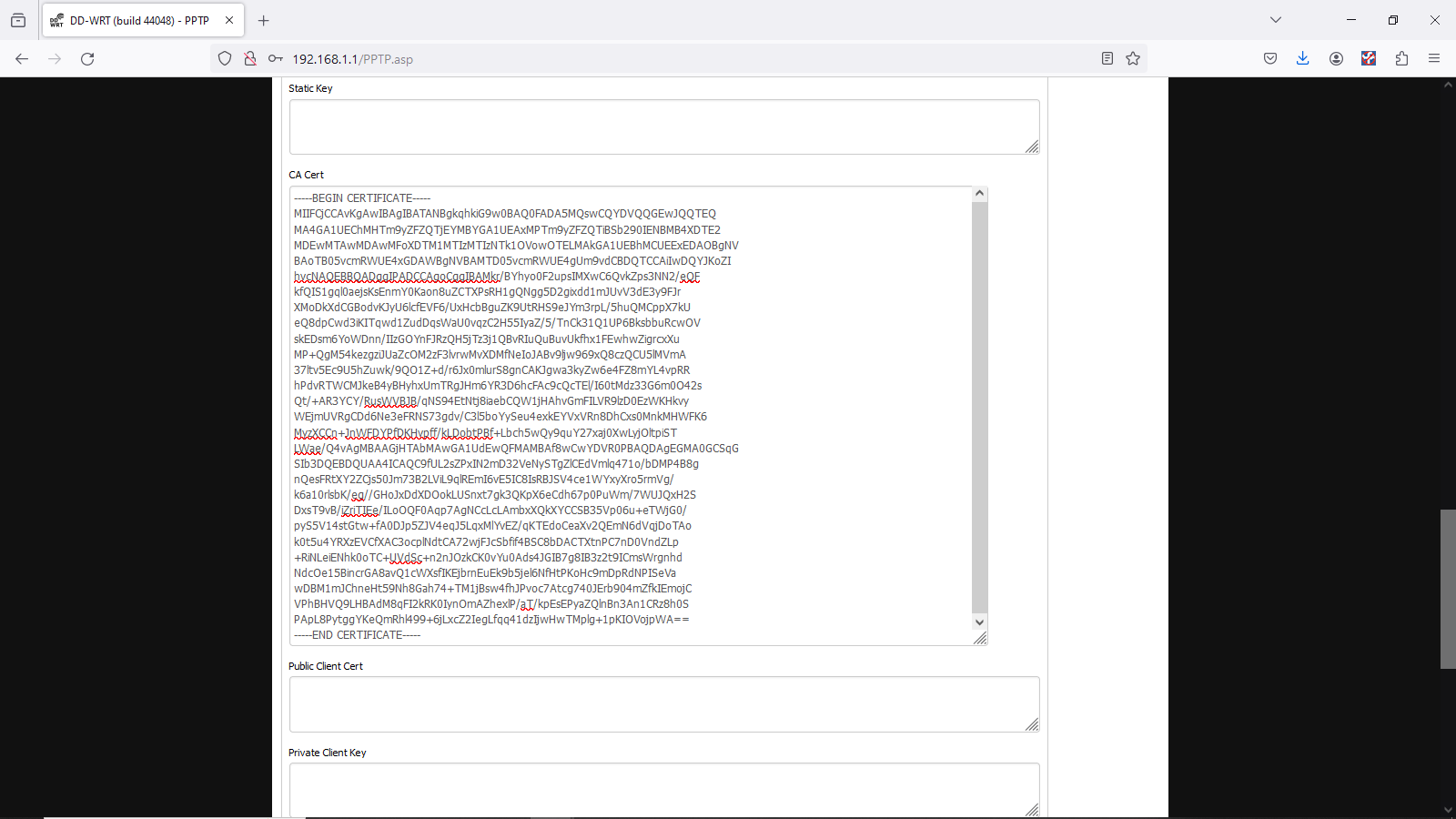
You will need to copy/paste everything in between those two lines, as well as both of the above lines into the block TLS Key, as in the above pic.  Then, you will need to find the section that has:

—–Begin Certificate—– and—–End Certificate—–

Copy/Paste everything in between those two lines, as well as those to lines into the CA Cert block as in the graphic to the left. After all that is entered, you need to click Save, then Apply Settings. To verify that the VPN is working, navigate to Status > OpenVPN. Under State, you should see the message “Client: CONNECTED SUCCESS“.

Now, everything that connects to that router, either by wire or wirelessly will be protected under NordVPN.  😉


Harmony Hub Alexa Fix

I currently use the Harmony Hub (Logitech) paired with my Alexa to control my TV with voice commands.  A couple weeks ago, it quit working. So, I tried the basic stuff: power cycle the hub, power cycle alexa, even tried disabling the Harmony skill and reenabling it.  (I DID notice that I could control the Hub just fine from my cell phone, but that defeats using it through Alexa, so it accepts voice commands.) All to no avail.  This is how I fixed it.

Exit the Harmony app on your phone completely by force closing it. Clear the application data – this will make it so it’s like you’re setting up a brand new hub when you re-open the app.

Uninstall the Harmony app from your phone, and reinstall it.

Unplug the Harmony Hub. Before re-plugging it in, hold down the pair / reset button, then re-plug it in while holding the button down. Continue to hold the button down for 5 seconds and the hub should start flashing rapidly red. After about 30 seconds, it should go to a slower flashing red. If it’s solid red, press the “pair / reset” button again, wait for a bit, and it should start flashing slowly.

Re-open the Harmony App on your phone and select “Setup hub”. Proceed like you’re setting up a brand new hub, but when prompted to setup a new account – select login instead to login to your account.

Next you should get the option to restore your previous settings or start fresh. Select restore and all of your previous activities / devices should be restored.

Key things that took some figuring out for me was how to get re-connected to the hub to set it up after the factory reset. It seems just removing/installing it and telling it to setup a new hub wouldn’t allow it to be found for me because it was looking on my network – I had to completely clear the app out so that it forced me to be logged out. Then it would go through the setup of my wifi and other settings for the hub, which made it discoverable again.